https://github.com/pshepetko/org.idempiere.mfg - see installation instructions in readme.
Please use the above link for updated instructions. The rest of this page is quite old. I am keeping for reference
OLD iDempiere Libero Mfg Plugin Installation Description
OLD iDempiere Libero Mfg Plugin Installation - Ideal Process
OLD iDempiere Libero Mfg Plugin Installation - from Development Environment
OLD iDempiere Libero Mfg Plugin Installation - From Fork That Includes WebUI Forms
Previously, Eugene Author and Peter Shepetko released a fork of Redhuan's Libero Mfg plugin. The most significant aspect of this fork is its inclusion of the WebUI versions of Libero forms. This means you can use most of Libero Mfg from the WebUI.
Repository: https://bitbucket.org/pshepetko/org.libero.mfg62
There is no ready-made plugin jar that will work with java 1.6. Below are the details and steps associated with getting it up and running in a Java 1.6 environment.
Step 1 - Download the code
Eugene's repository uses git.
To install git, use "sudo apt-get install git".
I recommend you download the code to the following directory: /home/ubuntu/dev/plugins/. If you have already downloaded Redhuan's libero code, you will need to make an additional directory named "eugene-libero". The resulting path is "/home/ubuntu/dev/plugins/eugene-libero"
To download the code, navigate to the desired folder and use the command "git clone https://bitbucket.org/pshepetko/org.idempiere.liberomfg.git"
Step 2 - Import the project
Use the File=>Import=>General=>Existing Project into Workspace
Select the root directory and import.
Step 3 - Update the code to use 1.6
If you are like me, your servers run Java version 1.6. Please be aware that Eugene's code is configured to use 1.7. I had to do the following things:
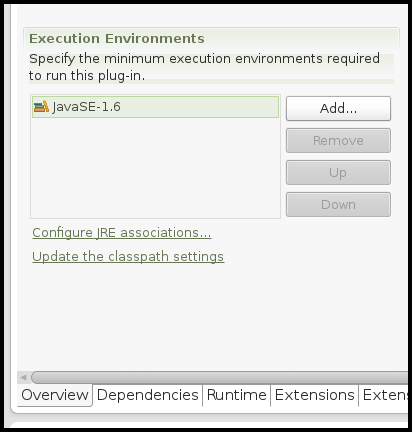
Open the org.idempiere.liberomfg project=>manifest and modify the Execution Environment section to use 1.6 instead of 1.7.
Click on the "Update Class Path Settings" link directly below the Execution Environment section. This action should get rid of all environment errors related to Java 1.7. See the image below for reference.
Select Project menu => Clean menu option and clean.
Right-click on the org.idempiere.liberomfg project=>Properties option => Java Compiler and confirm all greyed out options show 1.6 (not 1.7).
Execution Environment - Update Class Path Settings
Step 4 - Run it in your IDE and Test
Open the Run Configuration for server.product => Plugins tab => make sure org.idempiere.liberomfg is selected. Give it a start level of 1 and set to auto start.
Run server.product and confirm you can open the Order Receipt and Issue window.
Step 5 - Export the code as a plugin for a production server
Open the org.idempiere.liberomfg manifest.
Use the Overview tab => Export wizard to export this project to a jar file.
Step 6 - Deploy this jar on a production server using the Felix console.
 Step 4 - Run it in your IDE and Test