Problem Solving, Crash, Debugging and Trouble Shooting Issues
The purpose of this page is to help you explain why iDempiere or ADempiere is not behaving as expected. At a minimum, this information will help you get assistance from others.
If the Server Crashes
Perform the following steps (grab this data) before you restart the server:
Execute this linux command: pstree -p | grep "java" | grep -o -w 'java'| wc -w
Execute this SQL command: select * from pg_stat_activity;
Run these scripts. Note they involve pushing data to AWS S3 for shared analysis (therefore, they need chuboe.properties bucket configuration)
System logs are a vital part of understanding how the system operates. Any time your iDempiere or ADempiere instance is not behaving as expected, please follow the below instructions before posting to the forum.
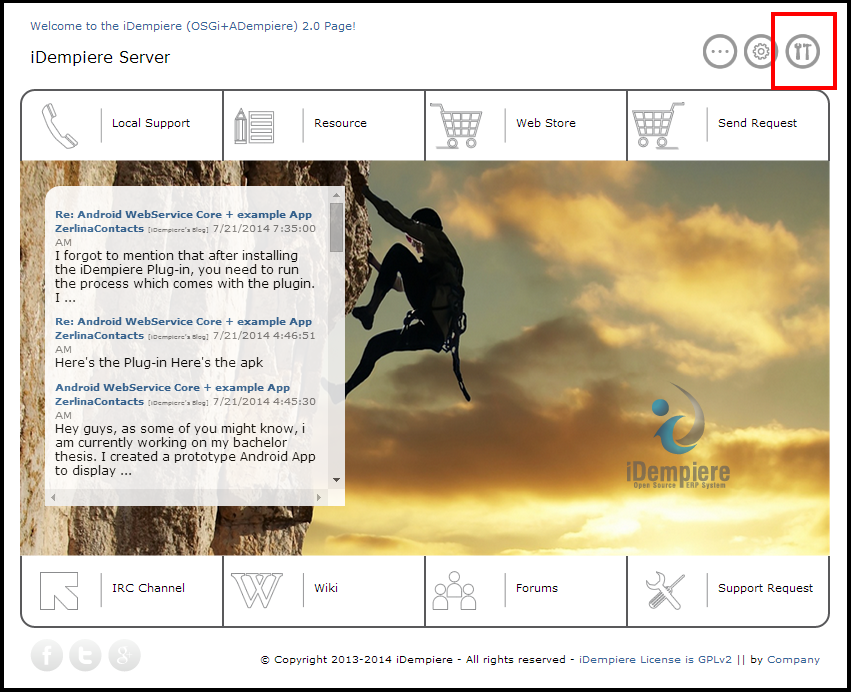
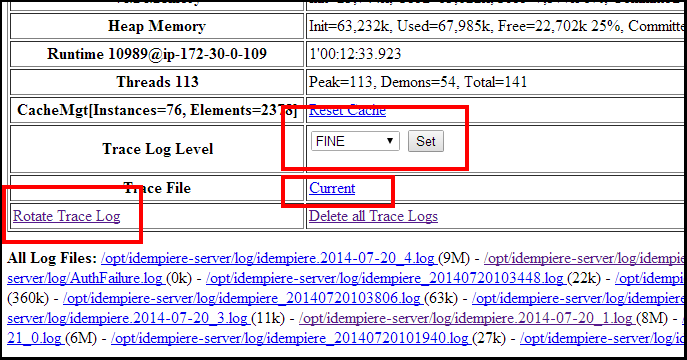
By default, the system does not log much information. To help debug an issue, you must 'turn up the logging'. If you use my script, the default iDempiere information page is located at http://YourURL.com:8080. Below is an example. You are looking for the iDempiere Server Monitor (idempiereMonitor) link which is highlighted in red. Use u:SuperUser and p:System to log into the page.
Perform the following:
Set the Logging level to Fine. This will increase the amount of detail end and rotate the logs.
Click on the "Rotate Trace Log" link. This will create a new log file so that you do not need to search through old logs created to this point.
Perform the action in iDempiere that represents the issue. This traps the issue in the current log.
Click on the "Current" link to see the current log file which should now contain the details about your situation.
Review the log to see if you can tell what is going on/wrong.
Download or copy/paste the entire current log into a text file. Send the log text file with your email to the group.
You may want to set the Trace Log Level back to "Warning" if you are concerned about disk space or performance.
INFO: is the setting you will use most often. Most production servers use either INFO or WARNING. The INFO setting will give you basic information, and it is helpful if something unexpected happens and you need to go back and see the details.
FINE: is the setting you will use when you go to reenact the scenario. FINE gives you good visibility into what the system is doing.
Set Log Level and Download Log from iDempiere (Alternate)
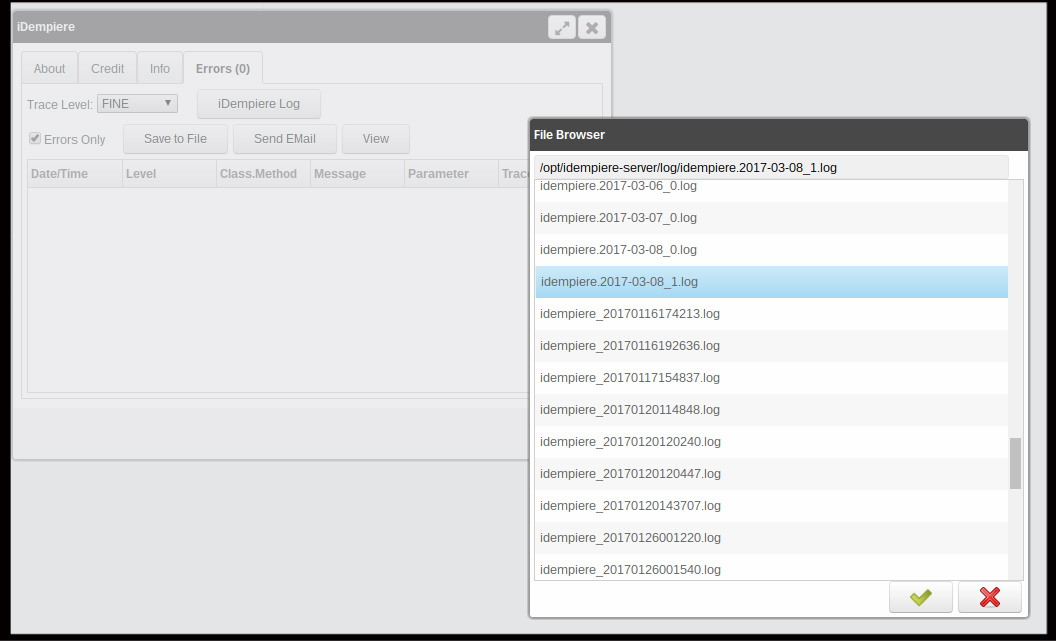
You can also set the log level and download log files from inside iDempiere. Just log in with a user that has access to System Administrator role (example SuperUser). To open the below dialog, click on the logo in the upper-left corner next to the Menu Search box.
Review the Logs
Reviewing logs can be intimidating. The best way to get started is by searching the logs on text that you believe should appear. Here are good items to find in your log to help you narrow your search:
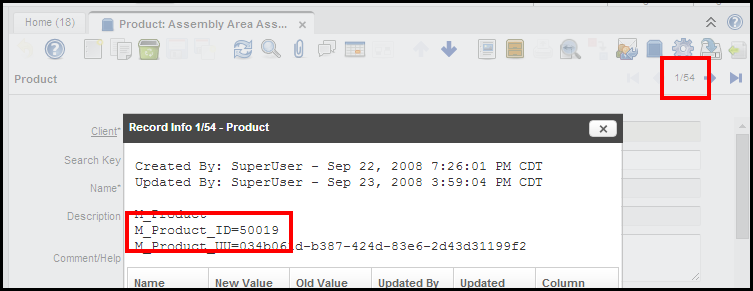
Record ID - if you are having an issue with how a product is being processed, I recommend you start by finding the product's id in the log file. The below section shows you how to find a record's ID.
Value or Search key - another good way to find your issue is by search on your record's value or search key. For example, records like Business Partner and Product have a Search Key field. This value will typically be included in the log.
"Exception" - if the application did something unexpected, it might throw an exception. If you search on the word "exception" you can quickly see details related to the issue.
How to Find your Record's ID
Click on the record number located in the upper right corner of the below image.
select * from ad_changelog_v where created between TO_TIMESTAMP('2019-05-01 13:00:00','YYYY-MM-DD HH24:MI:SS') and TO_TIMESTAMP('2019-05-01 14:00:00','YYYY-MM-DD HH24:MI:SS');
Eclipse is in a Bad State - There is are Errors Everywhere
There are times when you make a mistake. It could be a bad key press, you delete a directory, etc... Luckily, this is where source code control really helps. Here is a link with instructions to get your project back to the last committed state. If you are in this situation, please let me know if the below instruction help (either way - yes or no).
Link to google group discussion
Server Crashed - Considerations and Thoughts
Your server just crashed. Below are the steps and considerations to perform your root cause analysis:
Make sure your server's log is set tot the lowest level (see above). Logging is very taxing on your server (the JVM), and it can cause your server to grind to a halt.
Review your logs to see what caused the crash (see above).
Out of Memory is by far the single biggest issue that causes servers to crash. Make sure your server is sized according to your needs. Generally, iDempiere needs about 300MB of memory per concurrent user. This is a conservative number. The actual should be less per user.
If your server is sized accordingly, and you are still running out of memory, make sure the Java heap memory setting (XMX) is set accordingly. You must tell Java how much memory it can access. The installation script automatically sets the XMX when you install iDempiere on dedicated servers (one for app server and one for DB). You can refer to the install script for how to set the XMX value. Here are the steps to see your XMX/heap memory. Log into iDempiere => Upper-Left corner => click on iDempiere logo => Info tab => Search on "heap".
Plugins can create and orphan database connections. See the above section for gaining access to the idempiereMonitor, which has a section named "DB Connection Pool" that give interesting statistics about the servers connections.
Plugins can open other resources and not close them.
Plugins can create excessive objects on the heap thus resulting in a higher than normal amount of heap usage
Java Garbage collection is a memory intensive process. There are times when the system will run out of memory related GC. It is possible to tune GC for iDempiere.
To change the logging level in a Swing client, go to the Tools menu => Preference item =>Preference tab => Trace Level field. You can view the logs in one of two ways:
Logs are maintained in your home directory's log folder. In my case it is /home/ubuntu/log.
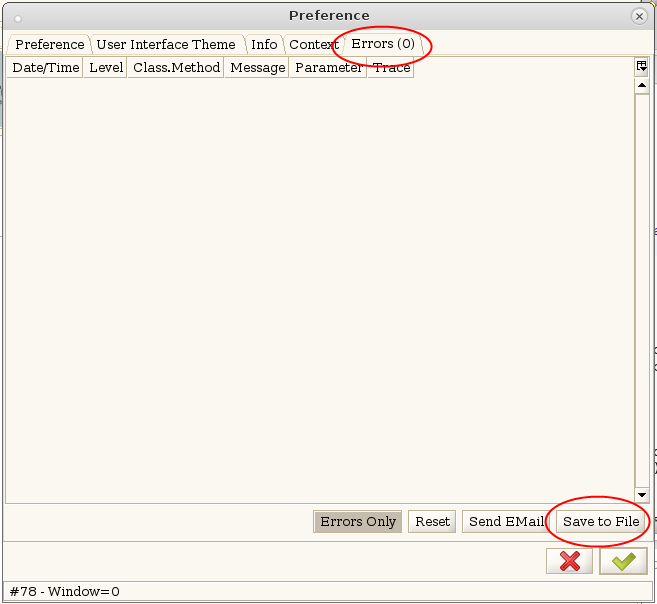
You can also view and download the logs through the Tools menu => Preference item =>Errors tab. You can either view the log through the dialog or download the log. See the following image.
 Perform the following:
 INFO: is the setting you will use most often. Most production servers use either INFO or WARNING. The INFO setting will give you basic information, and it is helpful if something unexpected happens and you need to go back and see the details.
FINE: is the setting you will use when you go to reenact the scenario. FINE gives you good visibility into what the system is doing.
INFO: is the setting you will use most often. Most production servers use either INFO or WARNING. The INFO setting will give you basic information, and it is helpful if something unexpected happens and you need to go back and see the details.
FINE: is the setting you will use when you go to reenact the scenario. FINE gives you good visibility into what the system is doing.